
This workspace is currently in Show Mode, meaning the ability to make changes has been disabled in order to prevent accidental alterations; but this is a nice way to showcase simple playback.
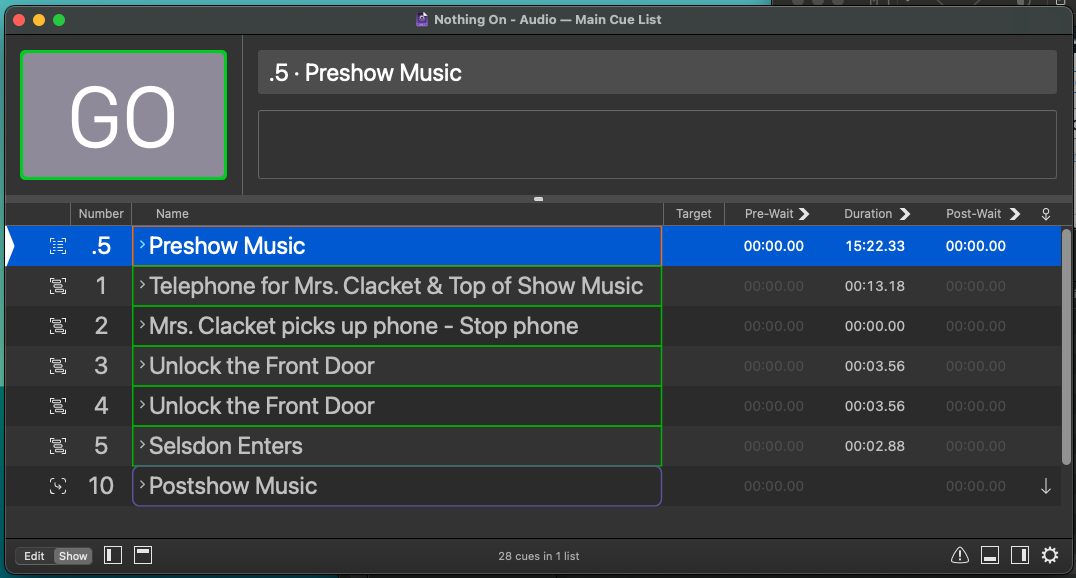
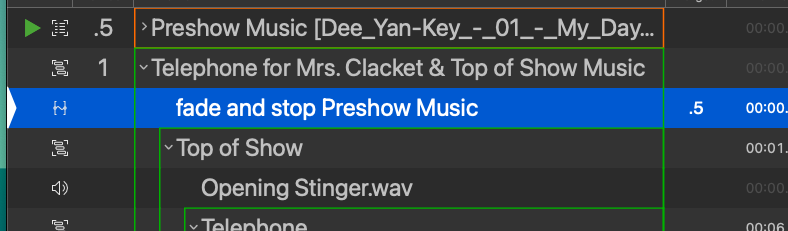
In this Workspace you’ll see a handful of cues, numbered and labeled. Each of these cues is in what we call a “Group Cue”, which a container for multiple other cues.
This is my preferred method of organization in designing. This way each moment that needs it’s own click of the GO button can be referenced as one entity, one chunk, one singular idea. All the individual moving parts and pieces are then obfuscated within. It makes for a nice and tidy workspace. These groups can be opened or expanded to show the details within. Sometimes I only have one piece, as in this case, only one sound effect.

Other times I have several, as is with this cue.
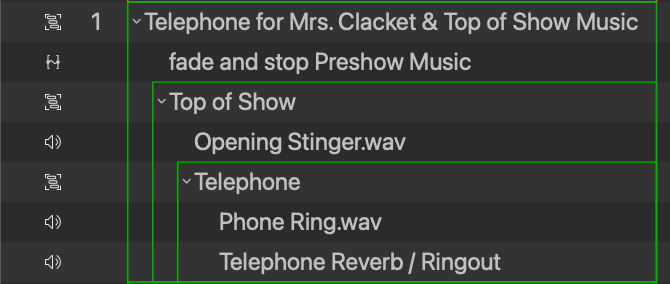
Let’s keep these all collapsed in order to make things a little bit simpler.
When you’re ready to execute cues, click on the cue you want to playback (typically the first one in the list). Your cue will be highlighted and you’ll see a white arrow to the far left of the row. This means it’s “on deck” or ready to be played.

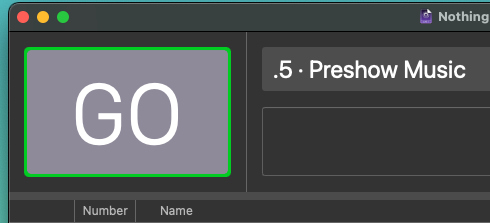
Now press the GO button or the Spacebar if you like your hotkeys.
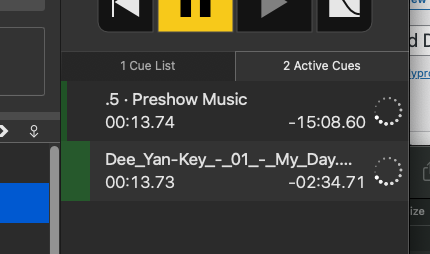
The cue will execute, and in the active cues section you’ll see the progress, and when the cue is complete, the progress bar will end.
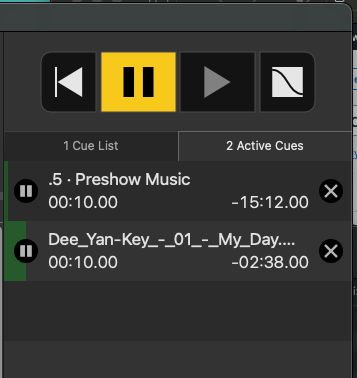
Sometimes cues will continue to play indefinitely. This is common for pre-show music or for ambient sound effects. Often a designer will craft the next cue so that it will fade and stop the current cue.
Occasionally you’ll have cues playing and will need to stop them (for example, if you’re in rehearsal and you need to hold for a moment while someone fixes a problem). Rather than finding all the fade cues, you can just hit your ESC button to “Panic” the cues, or force them to face out. This will naturally fade out any currently active cues.
Other times you need cues to just stop. Now. Immediately. No waiting. NOW! This is called a Hard Stop. To do this, double tap the ESC button – press escape twice.
Want to enter show mode or exit into edit mode? Simple press the toggle button at the bottom left.

Spacebar
Hit the Esc button once
Hit the Esc button twice