
Sometimes fading from nothing or fading to silence isn’t what’s best. Think of the beginning of a scene in a movie; no one is talking, we just see action, and the music is loud, letting itself establish. Once the dialogue begins, the words should have focus – so we need to lower the music, but still let it play quietly in the background. Or at the end of the scene we go back into a montage, a series of snippets, and we want to raise the volume again. We can do this in real life using QLab by once again using Fade Cues.
To lower the volume of a cue, add a Fade Cue, apply it’s target, and adjust the volume.
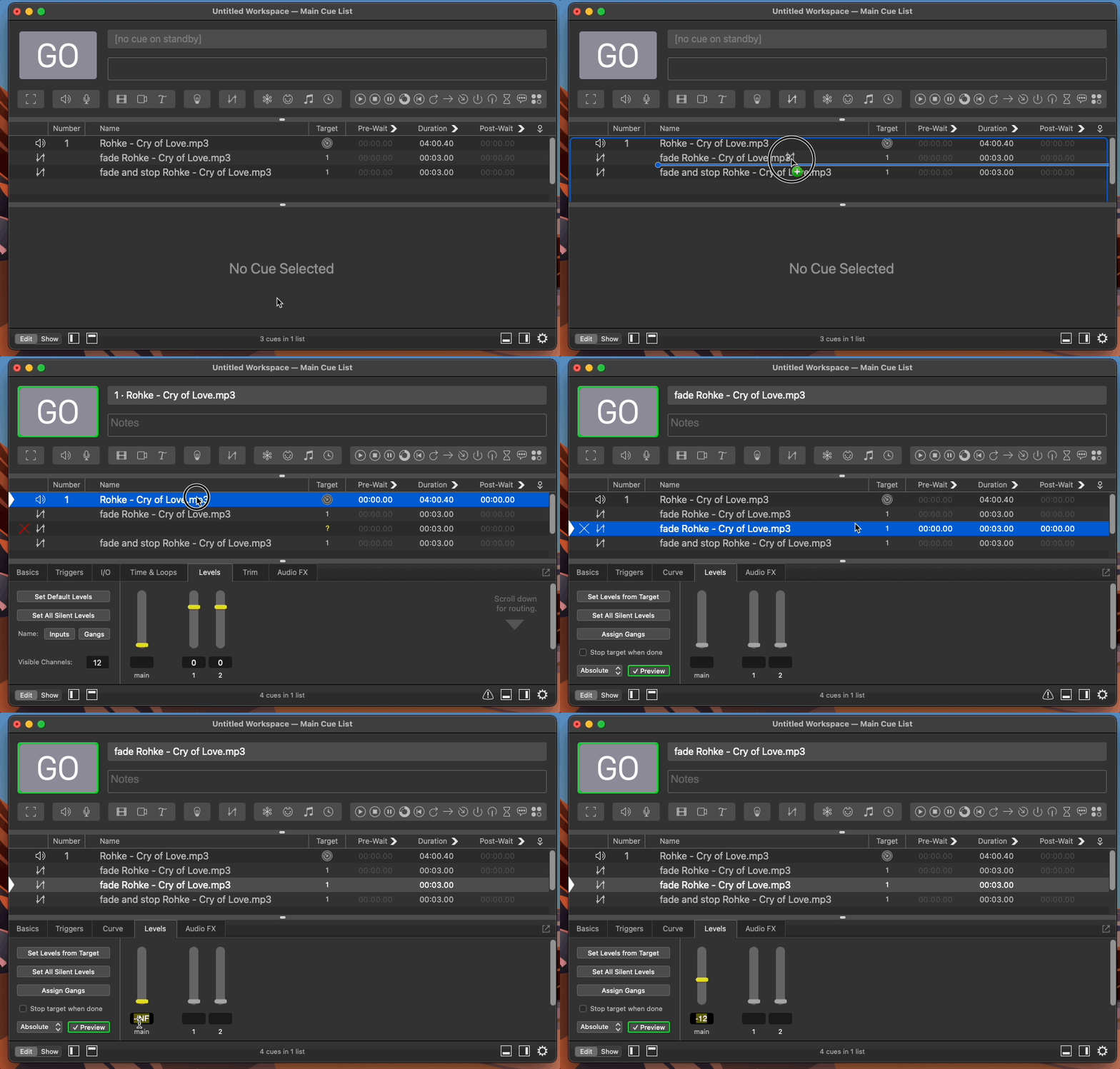
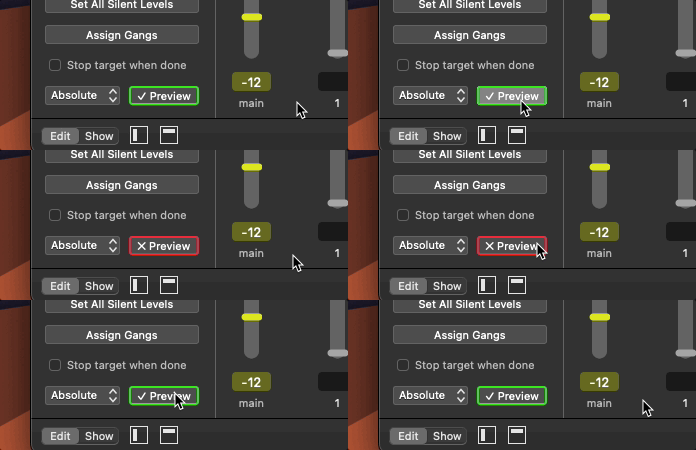
Again, it’s nice to have the cue playing so you can hear the new volume. As a reminder, enabling or disabling Live Preview will help you hear your changes or make alterations without disrupting rehearsal.
Add another cue to fade the cue back up to the original volume for the end of the scene; then label the cues in order to avoid confusion.
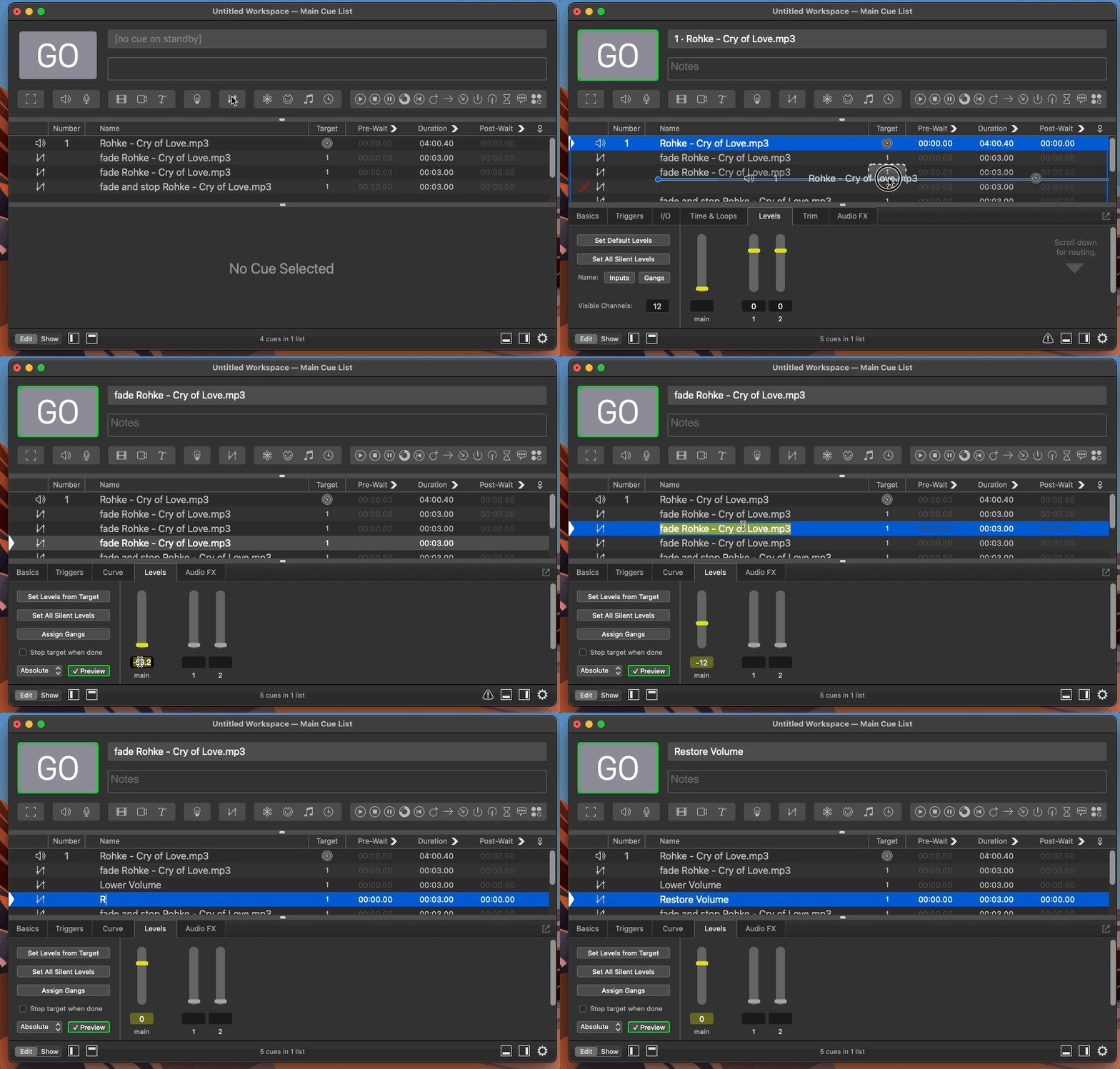
Which ones happen first? Well it all matters how you order and execute the cues.
Now we have an audio cue, it fades up, lowers the volume, raises the volume, then takes the volume out and stops the cue.
Add a fade down cue and a fade up cue to the previous lesson’s workspace.
Turning off the “Live Preview” button does what?
It allows you to change the audio levels without hearing the changes.