
Just because you can play an audio file on cue doesn’t mean that it’s the correct volume for the moment. Some audio files are louder than others. Some moments call for quieter music in the background. But what’s most important is that the choices you make can be repeated again and again – maintaining your artistry.
QLab can quickly and easily help you adjust, set, and save audio levels. To make a change, click on your audio cue and go to the Levels tab in the Inspector Tab.
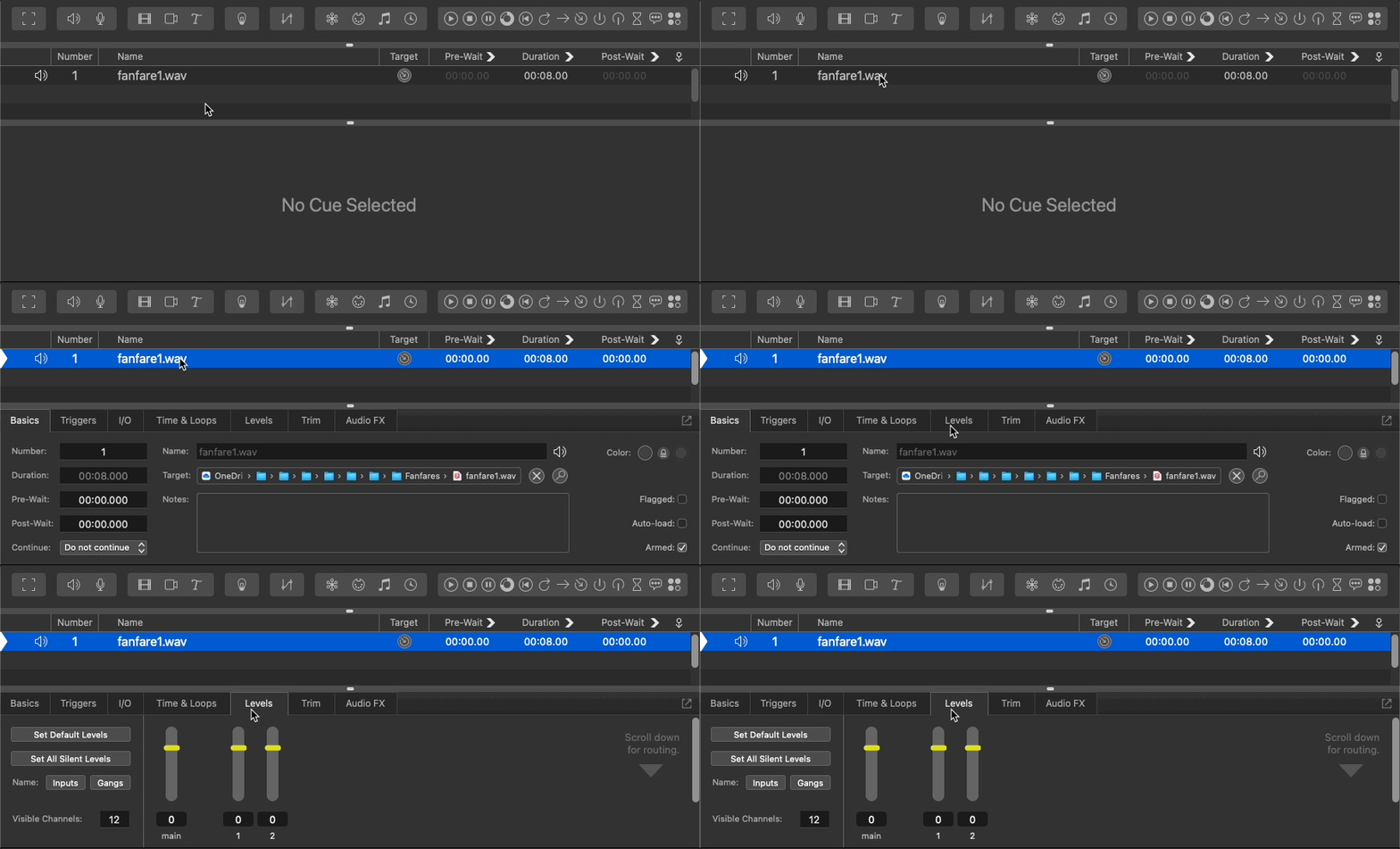
Here you’ll see a series of faders, we’ll cover what all these do in other lessons, but for now all we care about is the Main or Master Fader which controls the overall volume of this one cue, not all the cues in your cue list, just this one.
To set the level of this cue, I need to obviously hear the cue; so with the cue selected, I’ll press GO. The cue will start playing and QLab will automatically select the next cue, ready to be played.
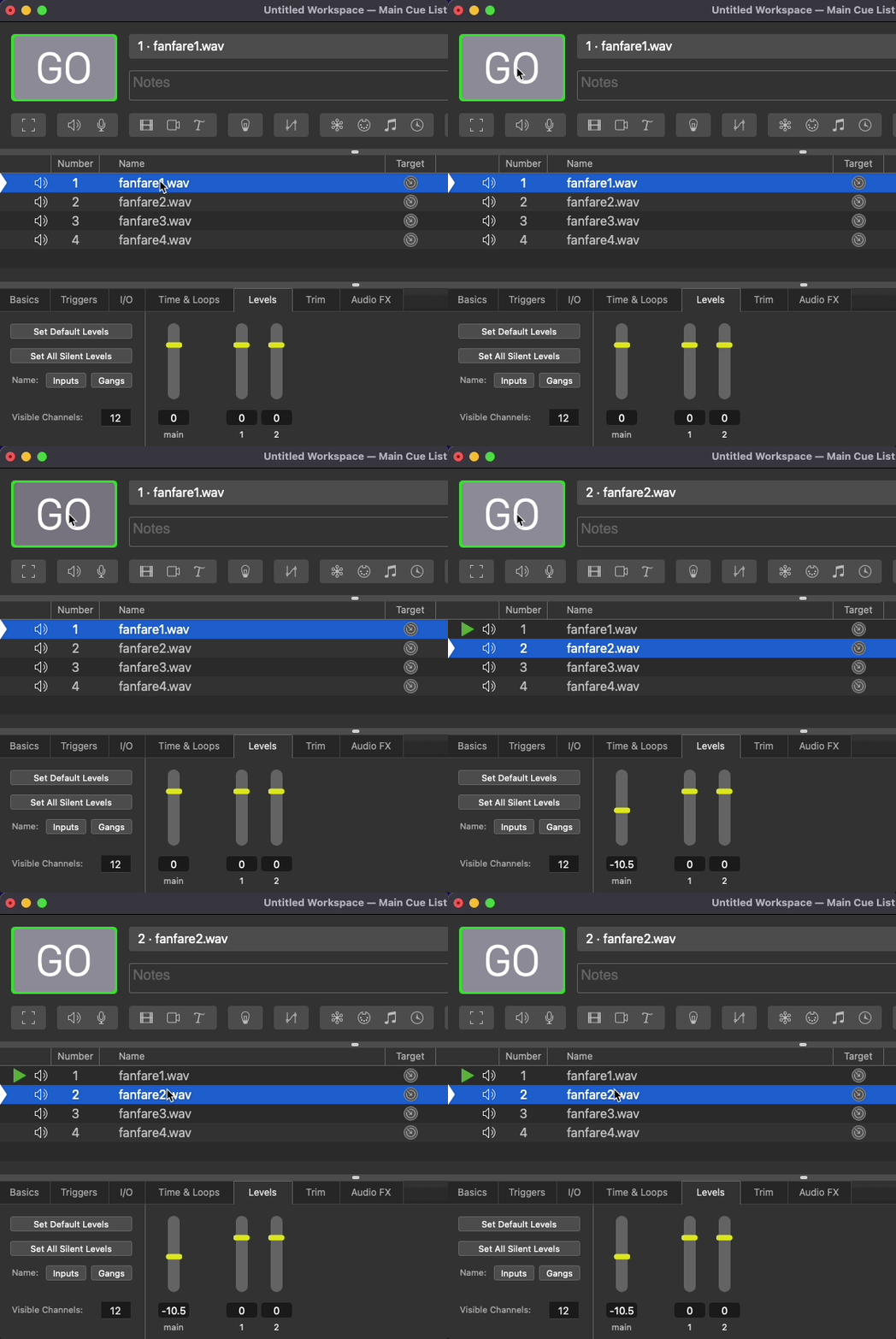
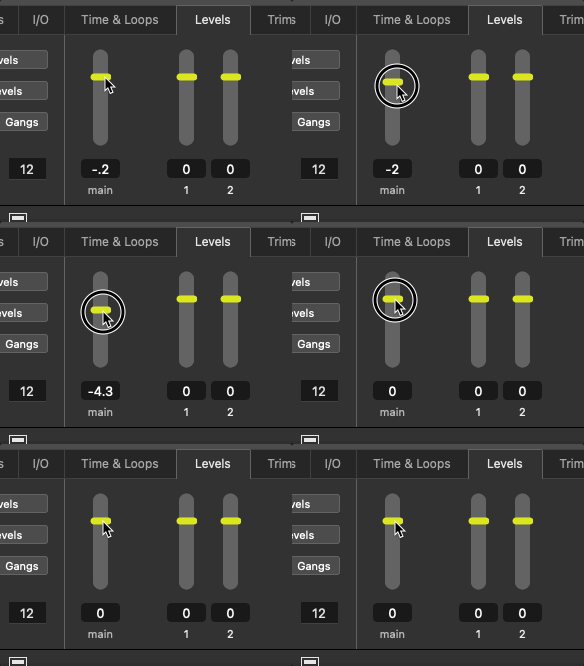
To adjust the audio, click back on the playing cue and bring the fader up or down.
A positive number means increasing the volume of the original audio.
A negative number means decreasing the volume of the original audio.
A zero means leaving the volume of the original audio exactly as it was original created.
Of course you’ll need to change the volume to what artistically sounds good in your space and for your audience.
Personally, I like to type numbers in the box rather than use the fader. I’m a little crazy like that. I just hate decimal points. I love whole numbers. By the way; typing “-INF” or typing a blank value will take the volume all the way out – pure silence.
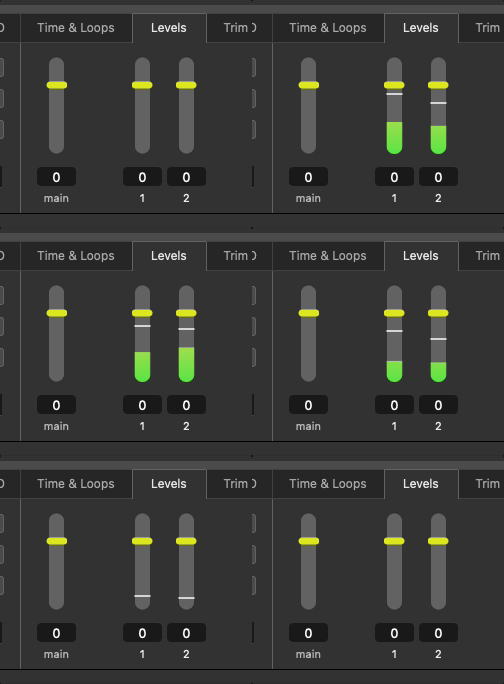
Now. If you’re using the Fanfare audio cues from the earlier lesson, you’ll find that the sound probably finished before you could click back, adjust the volume, and hear the adjustment. In this case you might want to press the [V] key, for preView. This will play the selected cue without advancing to the next one. Now you can go down to the inspector tab and adjust the volume right away. You’ll also notice the meters as part of the individual faders. This is a great way to help ensure that the audio is working properly.
If I hit GO, the cue will play and select the next cue; but I want to listen to this one and adjust the volume; so instead I’m going to press V for preView. You’ll see that the playhead stays on this cue.
Once the audio is playing we can see the faders metering the audio output. If I want to lower the volume, I can simply lower the master fader. If I want to raise the volume, I can raise the master fader. Easy as that. Lower it all the way and I can stop the output all together. Notice, while I make these changes, the meters also adjust.
Add an audio cue to a new or existing workspace. Play the audio cue and adjust its volume.
How do you take the volume all the way out on an audio cue?
Type -INF on the master fader or enter a blank value.