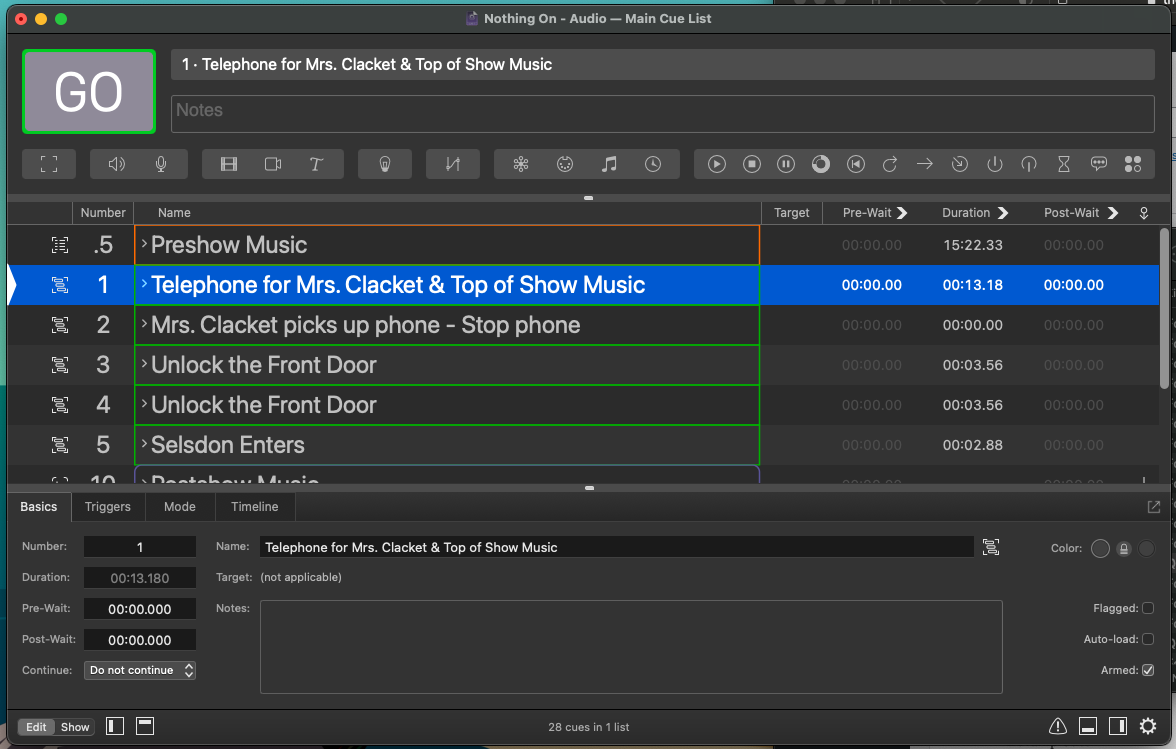
This workspace is the same as the previous one, but is operating in Edit Mode; the functionality is the same, I just want to expose you to various workflows.
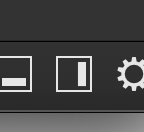
QLab can pause, resume, fast forward, rewind, and even begin a cue mid-stream. This is incredibly helpful when working through cues or when rehearsing. If you were working through a scene with a storm in the background, this would allow you to rewind the chaos. If you’re running audio for a dance concert, this would allow you to start mid song. This can all be done from the active cues tab. If you don’t see the tab, enable it at the bottom right corner.
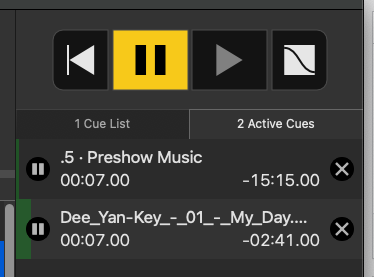
The buttons at the top are simple and super handy. The large buttons in the center are pause and resume (which looks like a play button). If you have the chapter workspace open try playing the Preshow Music. If the director needs to talk to the actors backstage, I can simply press pause for a second, then resume when they’re finished conversing. I often find this handy when determining needed duration – That way you won’t ask, “Was the preshow song long enough? I dunno, we paused for a five minute conversation!”
You could also resume individual cues in the list if need be by pressing the play button next to the single cue.
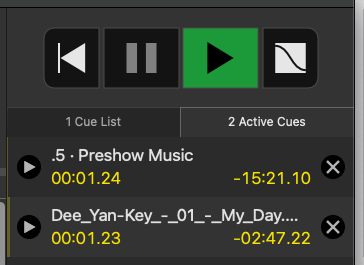
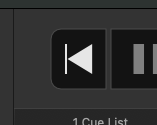
If the actors need to go back to the beginning of the scene, I could press the reset button (which looks like a rewind button). This will stop all the cues and bring my playhead back to the beginning of the active sequence of cues, ready for me to once again hit the GO button.
And finally, the curvy fade button does … can you guess it? Yup. It simply stops the cues, same as hitting escape to panic the cues.
These buttons are super handy. But it gets better. If for some reason I wanted to remove a single cue, I could hit the X in that active row. This would help me determine which sound in a sound scape is problematic.
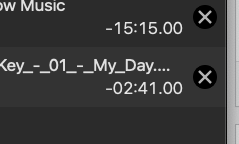
Or if I were paused, I could resume individual cues. This would help me add back layers of sound effects, one by one.
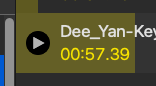
These actions help me compartmentalize problems and identify individual cues from a potentially complex problem.
Are you ready ready? It gets better still. The progress meter is adjustable. I can rewind or fast forward an individual cue. If I grab a group cue, QLab will even apply the adjustment to all the child cues.
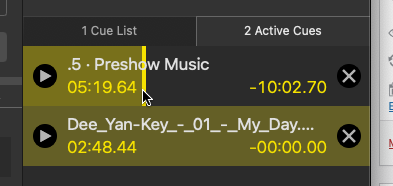
Ready for one more? I can even load an individual cue or cue sequence to a time mid cue. Go to Tools / and then Load to Time (this is only available in Edit Mode by the way). Now I can skip ahead in a cue, even in complex cue sequences. Ready? Hit go and the cues will start mid-stream.

Okay. Here’s one more handy trick while working on Edit mode. Sometimes you’re trying to edit a cue and want to see or hear it execute. Pressing “GO” makes the playhead advance to the next cue. Uhg. Now I have click one extra time! Instead I could press the “V” key to preView the cue. It will play normally, but the cue will stay selected. I love doing this when adjusting audio levels of individual cues.
Download this workspace.
Load a long ambient cue.
Fast-forward in a song.
What key allows you the preview a cue?
Hitting the “V” key.