
When creating cues that fade up or down audio you might know by a certain amount but have no clue what that final value should be. This is when a different type of Fade Cue comes in handy – called a “Relative Fade”, in contrast to the standard type, an “Absolute Fade”.
Whereas our standard Fade Cues fade to an absolute, certain, specific number – a Relative Fade Cue wants to turn the volume up / down by a given number. So what’s the final volume? Well, it’s relative to what the Audio Cue’s volume was.
So let’s try it by creating two Fade Cues, one Absolute and one Relative. We can change the type in Levels tab in the Inspector.
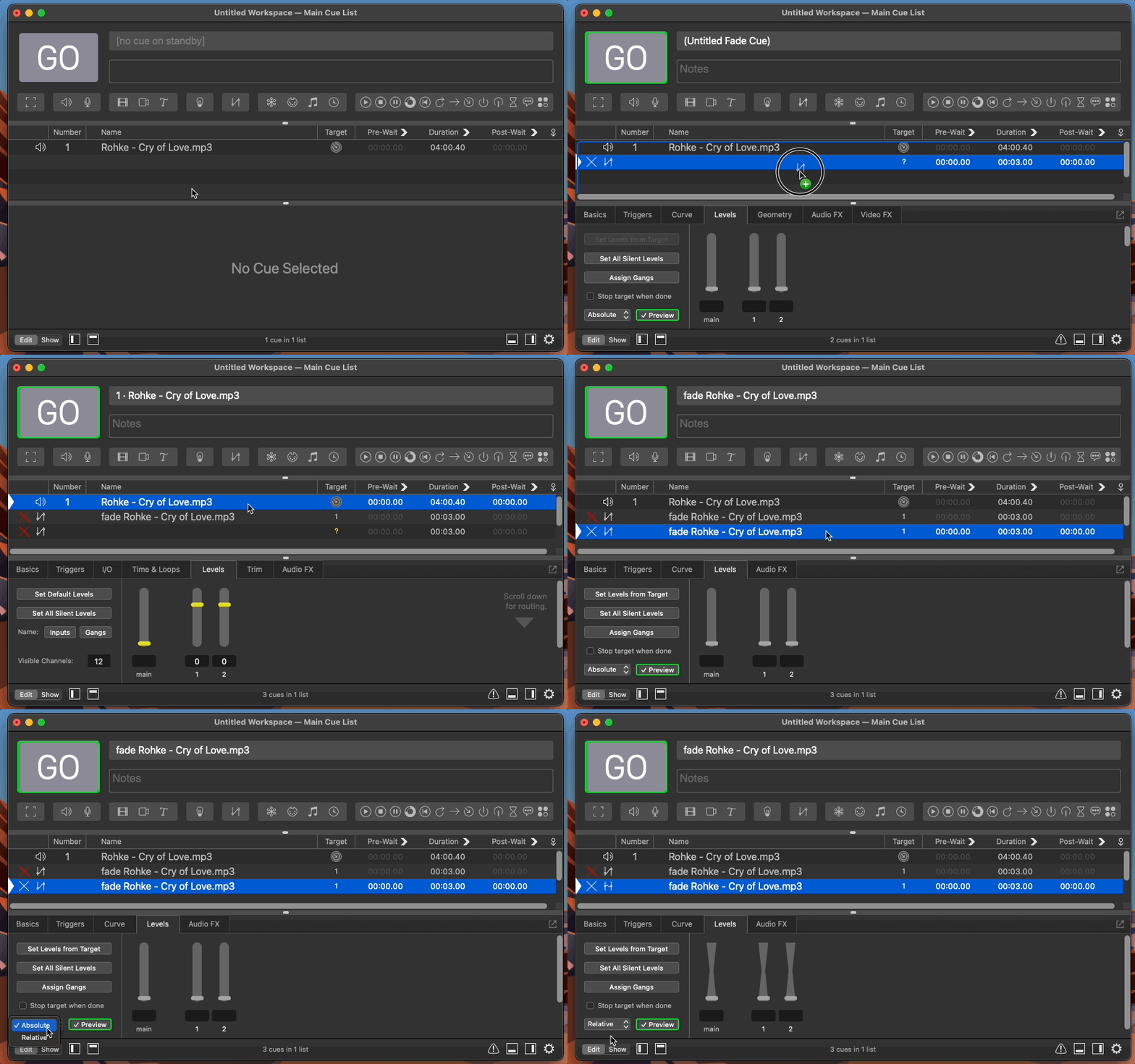
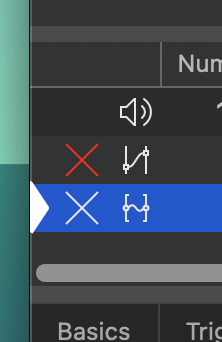
You’ll notice that the two different types of cues have different icons – helping you identify a Relative Fade from an Absolute Fade.
We’ll set both fade cues to a value of -6dB.
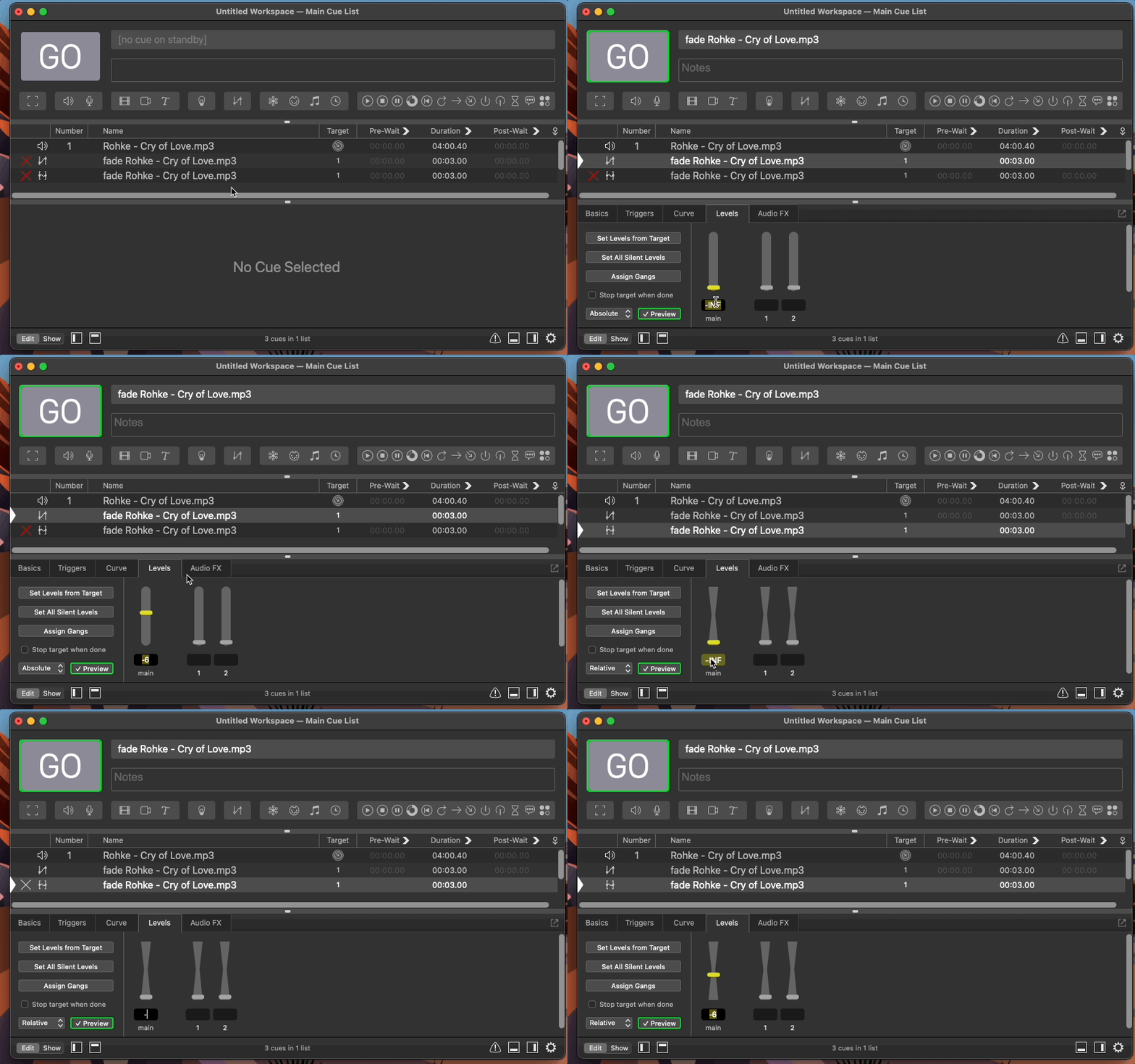
Now, try playing the song, the original Audio Cue (I’ve set the Audio Cue to an initial volume of 0dB) – and while it’s playing execute the Relative Fade. The volume will turn down by -6dB. But execute the relative fade cue again, and again, and again, and again. The volume will turn down further, and further, and further, and further.
If you were to do the same thing with the absolute fade, it will alter the volume up to -6dB or down to -6dB – but executing the cue again will have no change, because we’re already there.
Which one is right and which one is better? Well it really depends on your situation and your need but having both options makes for some very powerful possibilities.
Change the previous lesson’s fade down and up cues to relative fades rather than absolute fades.
What type of fade fades to a certain level no matter what the current audio level is?
Absolute fade.