
A cue sequence is simply when two or more cues are executed in conjunction with one another when you press GO. Press the button and Thing 1 AND Thing 2 happen.
When might you want this? Well, let’s go back to the beginning of this chapter. We made an audio cue with a fade in cue. It makes sense that these want to occur together with one click. In fact, it’s kind of annoying to click several times.
Another example? Preshow music. Once the first song is finished … I want the next one to play. So on. So forth.
This is where the concept of Autofollows and Autocontinues comes into play. Almost any cue can either be set to autofollow or autocontinue. (Certain types of group cues won’t allow these because they’re already providing the same functionality). You can enable Autofollow and Autocontinue by clicking in the very last column of your cue list and making a selection.
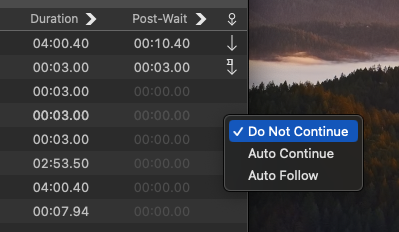
A small icon will appear to tell you that the Autofollow (Arrow with a flag) or Autocontinue (Down arrow).
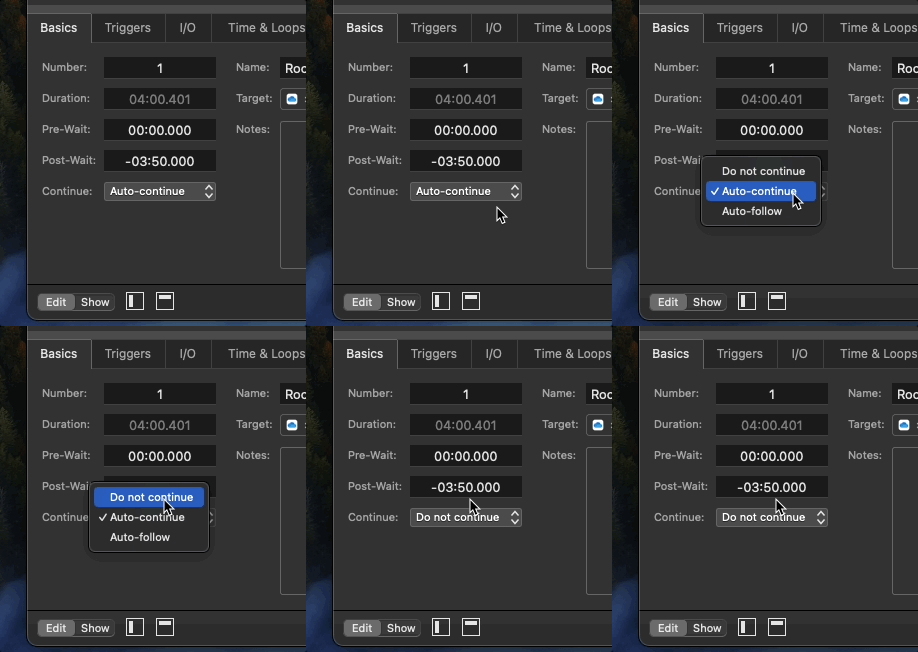
You can also do the same thing from the Basics tab of the inspector. Click on the Continue drop down. Select “Do not continue” to disable the Autocontinue or Autofollow.
If a cue has Autofollow enabled, when the duration or action of the cue is finished, QLab will automatically start the next cue (which is great for our preshow music example or for an establishing fade).

If an Autocontinue is been enabled, when the cue is started, QLab will automatically and immediately start the next cue (which is great for our fade in example).

And of course you can combine multiple Autocontinues and Autofollows to create a complex cue sequence, such as this one that starts a song, immediately fades in the music, then follows into two more fades.

Add an audio cue and create a fade in. Adjust the continue mode to create a cue sequence that requires only one press of the go button.
What is the better option for preshow music, Autofollow or Autocontinue?
Autofollow