
It’s common for someone, such as a designer, to create a workspace from a personal laptop and transfer the necessary files to the production computer. It’s rare that both environments are identical, but that’s okay if they’re not because QLab will help walk you through making alterations.
Throughout these lessons, we’ll have you download workspaces so that you can practice what you’re learning: another prime example of environments that are different.
Here I’ve just opened a workspace from another computer. Because that computer had a different type of sound output device (a FocusRite external audio card) and because QLab utilized that device, my computer can’t play the cues correctly (I only have my MacBook speakers).
I know I have problems for several reasons.
First, people keep telling me that I have problems.

Second, a pop-up in the corner of the screen
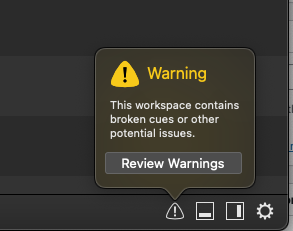
Third, various cues have a red X next to them.
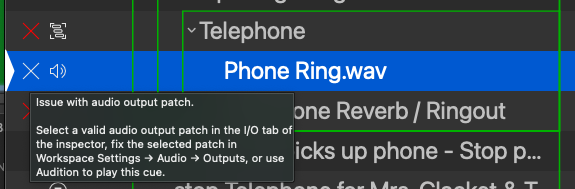
And of course fourth, and finally, if I try to play the cue … it won’t work.
In this lesson, we just care about the warnings symbol at the bottom. Check out the next lesson to learn about broken cues. And I would recommend finding a good therapist for any personal problems.
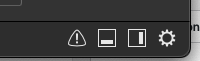
Start by clicking on the Warning symbol at the bottom right corner of the screen or find the Warnings window under the View menu.
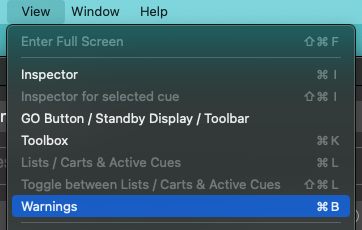
Scroll to find the warning about your Audio Output Patch.
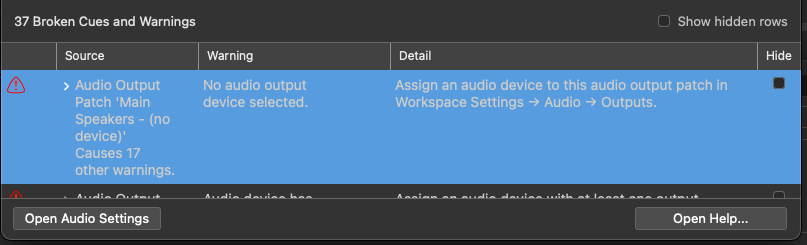
Clicking on the warning will enable a handy dandy button, “Open Audio Settings”. Clicking on the button will open your workspace settings and take you directly to the spot in which you can fix the problem! Here you’ll see that the Device connected to your Audio Output is either absent or disconnected.

Clicking on the dropdown menu I can select a different device. Here I’ll select my MacBook Pro Speakers, meaning audio will always come from laptop speakers.
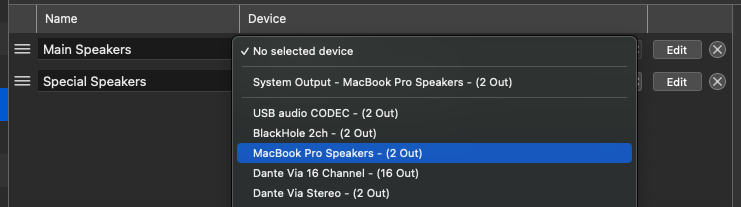
If I were to instead select “System Output – MacBook Pro Speakers”, QLab’s audio output would follow your computer’s selected audio output; meaning if you were to plug in a pair of headphones, QLab would switch from using speakers to the headphones.
Select System Output if you want flexibility while working.
Select a specific device if you want dependability in a permanent system.
Once finished I’ll press the Done button in the lower right and all my problems are fixed! Well … at least most of them … but my audio is playing now.
Go ahead and try it for yourself. Download the workspace for this chapter and make sure the audio plays properly on your computer. If you have a second screen in your setup, fix the video issues as well.
Download this workspace. Connect to your preferred audio device and secondary display.
Where can I find a list of workspace issues?
The Warnings Window