
Sometimes adjusting the time of a fade isn’t quite enough to capture the detail you need. Perhaps you want a sound to quickly lower but take a very long time to die out. Or perhaps you want to a sound to establish at a volume that is barely audible, then quickly become present. Or maybe you want something crazy like up, down, up, down, up. This is where the Curve Shapes come into play.
Curve shapes graph values over time; therefore only apply to fade cues. And we always see two of them, one for values that are increasing, one for values that are decreasing.
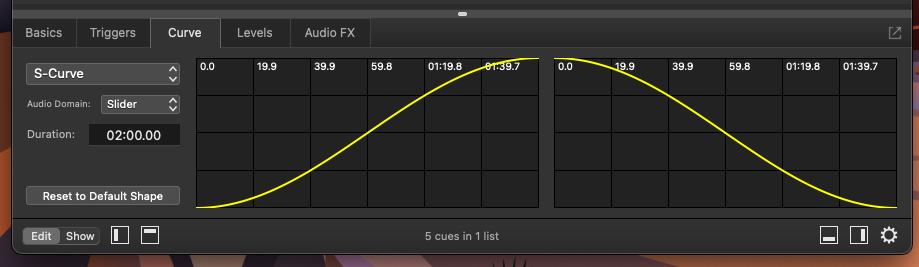
We can select from a handful of standard fades …
S-Curve
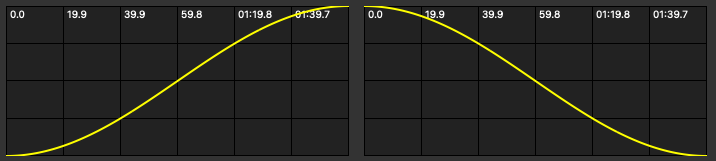
Parametric Curve
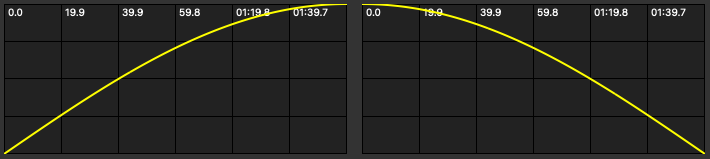
Linear Curve
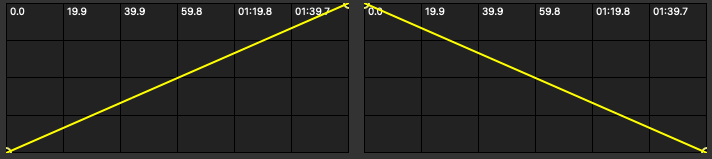
Custom Curve
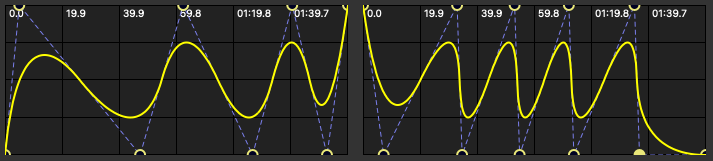
Yup. That’s correct, you can create some CRAZY patterns if you want. In Custom Curve only, hover over the yellow line, click, and drag.
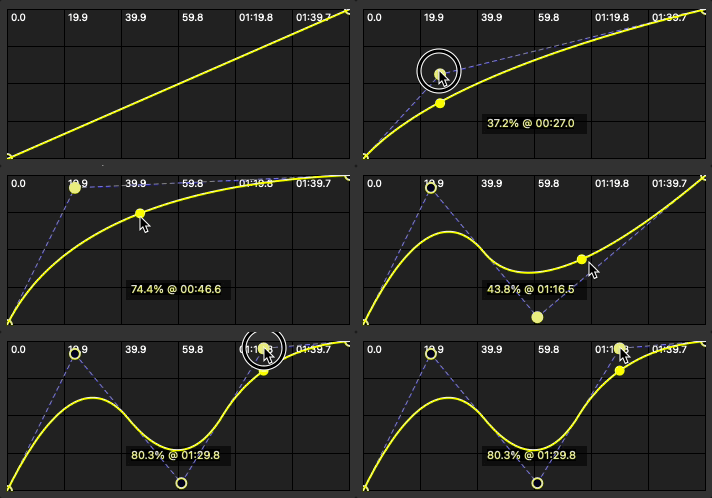
To get rid of a point, simply click on it (it will turn yellow) and press the DELETE key.
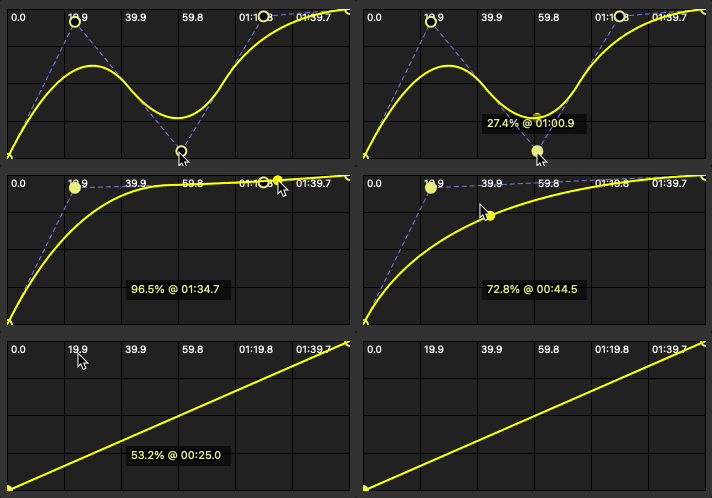
Change the previous lesson’s fade up time to 15 seconds and experiment with each different curve shape.
Where do you apply a curve shape to your audio cue?
In the curve shapes tab in the inspector.