
Submasters in the EOS board can behave in several different ways. To change how a Submaster behaves, we need to go to the Submaster view by either opening a new display tab and selecting Submasters or double tapping [Sub] [Sub], or the “S” button on your keyboard. .
This will open the Submasters display, which has a special window for the selected Submaster at the bottom.
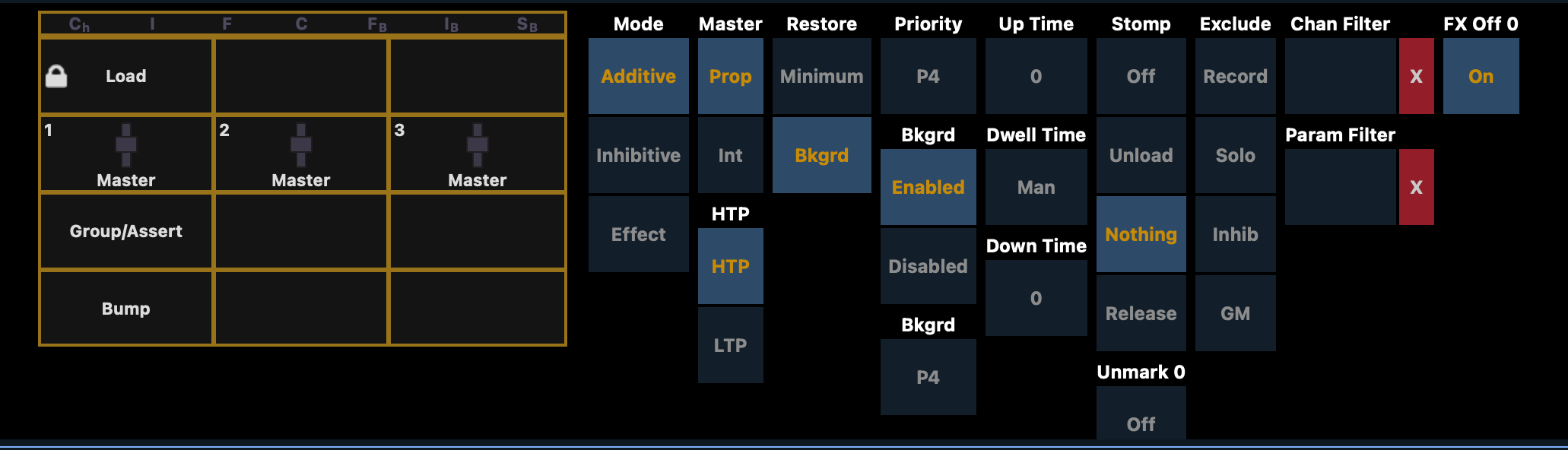
There are several options that can be adjusted for subs and in turn their assigned faders. I’m only going to run over the most common ones; but you can read about them all on ETC’s website. Here we go …
As mentioned in the Faders lesson we can set a fader / sub to act as …
There are two options here that can expand or limit a sub’s scope …
This feature answers the question of “who should have control if the light was already on?” …
Here’s just a quick one. You can exclude a sub from being seen or considered by a few features in the EOS board; for example …
I’m just going to mention this one shortly. Subs and Cue Lists can have a priority number between 1 – 10. It declares that this is more important than another sub or cue list. If two lights are being told to do something; a P6 Sub will take priority over a P4 Cue, even if the P4 Cue is brighter (Priority #4 is the default across the board).
Here’s a real world example; sometimes I’ll make a House Lights fader set to Priority #1 and Record Exclude mode. I can then bring it up dimly to 20% while in rehearsal and …
Pretty slick, huh?