
When you begin EOS for the first time, you’ll have created and opened a new file. If you’re using Microsoft Word, a new Document isn’t that difficult to begin using, simply start typing; but for a technically robust piece of software such as EOS, it would help to start with an existing file or template.
For this course, I have a lot of files for you to use. Feel free to download them all at one time or peruse individual files if need be.
Here is the link for the full folder. You’ll need to press the [Download] button at the top of the window.
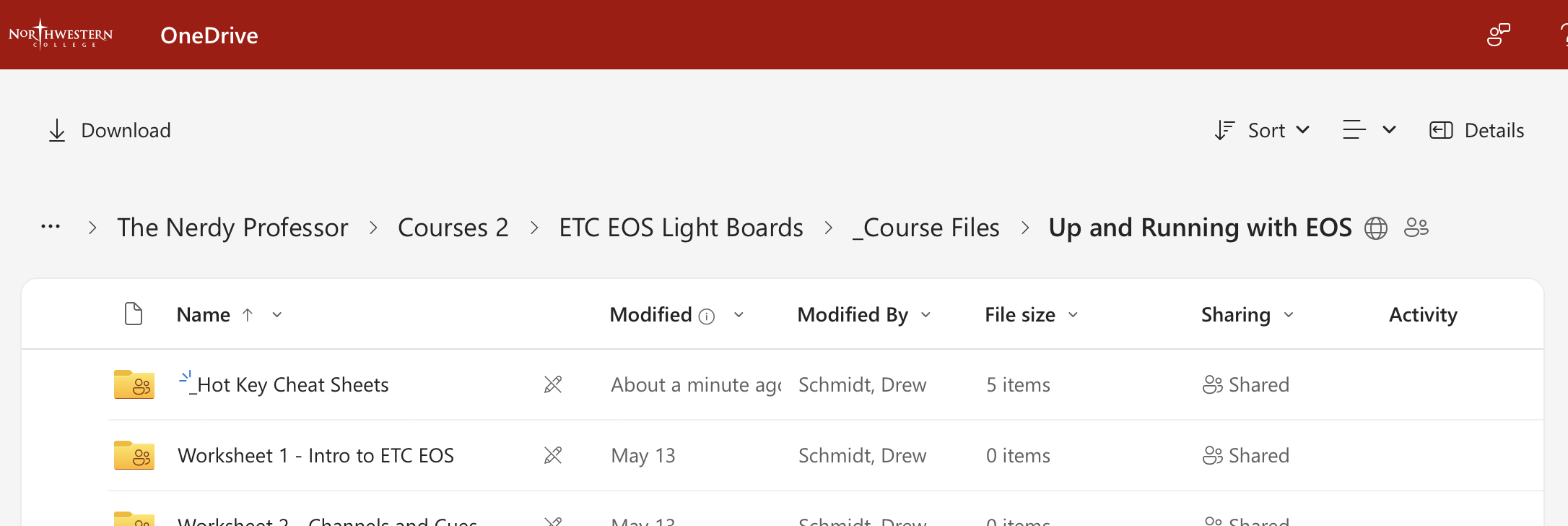
Once downloaded you’ll need to navigate to your downloads folder. Do not simply double click the file. EOS wants you to place all documents into a very specific folder and access all files through the application itself. Instead, move or copy the worksheet file into the ETC EOS Show Archive folder which can be found in your Documents folder …
On a Mac, that path is Macintosh HD \ Users \ USERNAME \ Documents \ ETC \ Eos \ ShowArchive
On a PC, that path is C: \ Users \ USERNAME \ Documents \ ETC \ Eos \ ShowArchive
And for now, that’s it!
Wait, what am I supposed to do with the downloaded ZIP file?
Oh. Don’t worry. We’ll explain more later. But you’ll want to put it in the Documents folder and THEN unzip it.